
Fixed partners
Link couples or training pairs and they stay together every round while opponents rotate fresh.
Learn more →PickleMixer is built to keep players on fresh partners and opponents deeper into the session than typical random or basic rotation tools. A complete feature reference — algorithm, ratings, schedules, ladder leagues, and every quality-of-life tool — for organizers who want the long version.
Most "mixers" shuffle a deck every round. PickleMixer tracks pairings across the whole session and avoids repeats until they become mathematically unavoidable. It runs through pre-baked rotation patterns for 9–24 player counts, then a direct-search constraint solver, then a genetic-algorithm fallback — each step optimizes partner- and opponent-freshness together.
Algorithm, ratings, schedules, ladder leagues, dashboard, & every quality-of-life tool.
Every round, PickleMixer evaluates the current roster against a memory of every pairing it has produced so far in the session. It chooses the round that minimizes a combined freshness score across partners, opponents, sit-outs, court numbers, and any active rating/gender constraints.
The pipeline runs in three stages. For common player counts (9–24) the answer is already pre-solved, and the round renders in milliseconds. Outside that range the engine falls back to a direct-search constraint solver, then a genetic-algorithm stage for anything still ambiguous. The same code path runs offline in your browser — under 200 KB cached.
For 9–24 players, the optimal rotation is already known. The engine looks it up and serves it in < 1 ms.
Direct-search builds candidate rounds, scores them against the freshness memory, and keeps the best.
For irregular sizes, a small population evolves toward the lowest combined repetition score.
Link couples or training pairs and they stay together every round while opponents rotate fresh.
Learn more →Tag gender on each player and the engine balances men and women across courts every round.
Learn more →Seed ratings manually or auto-track Elo through recorded scores. Every team comes out balanced.
Learn more →Got one court nobody wants? The mixer fairly distributes it across the entire session.
Learn more →Mark players who need guaranteed court time (e.g. coaches or hosts) — they keep playing while everyone else rotates through the bench.
Learn more →Organize players into rival squads — same side every round, opponents rotate.
Learn more →Pick up a player and drop them on another court. Roster updates, next round respects the change.
Learn more →TV / projector view with built-in countdown timer, buzzer, and auto-mixing.
Learn more →Colored teams, flexible font sizes, adjustable columns — fit any schedule on one or two pages.
Learn more →Schedule events, manage invites, players RSVP — lottery & take-turns waitlists, staggered auto-invites.
Learn more →Multi-division competitive leagues. Elo, decay, promotion & relegation each cycle.
Learn more →Full mixing engine runs in your browser — < 200 KB cached. No internet needed at the courts.
Learn more →Lock a player or team to a specific court while the rest of the rotation moves around them.
Learn more →Rename with a formula. Type 2x for all even courts, x+10 to shift the whole range up by ten.
Learn more →Players self-report scores from their phones. Ratings update live, next round mixes itself.
Learn more →


Open the mixer, type each player's name into the input field (pressing Enter or clicking Add after each one), set the number of courts, and press Mix. When the game ends, press Mix Next for the next round.
Hint: Only use REmix if the shown game was not actually played — it regenerates the current game with any changes you've made.
Free and anonymous usage of all core mixer features. No need to do anything except start entering your players' names. Your session is saved locally in your browser.
PickleMixer ships a full offline mixing engine that runs entirely in your browser. Once installed, you generate the same rotation with no internet connection at all — built for outdoor courts with weak signal, gyms with unreliable Wi-Fi, or anywhere reception drops mid-session.
The offline engine returns most mixes in milliseconds, even on a typical phone. It runs the same pre-calculated rotation patterns for popular player counts (5 to 36 players) and the same direct-search algorithm everywhere else. The online mixer adds one extra step on top — a genetic refinement pass that fine-tunes the rotation — so offline is the same engine minus that final pass.
What works offline: fresh partners and opponents deeper into the session, sitting in turn, never-sit players, linked partners (fixed pairs), drag-and-drop player swaps, fixed-partner round-robin patterns (up to 17 teams / 34 players), and the same streak-aware consecutive-play / consecutive-sit-out handling used online.
How to use: Open Games Settings and tap Download Offline Mixer while you're online. The package (under 200 KB) is cached in your browser. Then flip the Offline Mode toggle to mix locally. The toggle persists across page loads, so you can prep the device at home and arrive at the courts ready to go even if you lose signal. Updates download automatically the next time you're online.
What's not available offline: account features (cloud sessions, score entry, headless mode, big-screen mode), frozen courts, court pinning, bad-court rotation, mixed-doubles gender balancing, and squad-vs-squad mode all need the server. The advanced weight sliders for these features are hidden in offline mode. When you go back online, your settings are preserved.
The mixer tracks every prior pairing across the session and prefers combinations it hasn't produced yet, so partners and opponents stay fresh round after round. Sit-outs are distributed fairly even at extreme player counts and player-to-court ratios.
Your mixing session is managed server-side, so you can pick up where you left off on any device when logged in. Built-in timeline navigation lets you step back through past games in the session.
Three engines work together: pre-calculated patterns for popular player counts, a direct search everywhere else, and a genetic refinement pass that tunes the result. The mixer tracks prior pairings round to round instead of shuffling the deck.
Pre-solved mixes are served automatically if available. For maximum optimality and speed, many popular combinations (9 to 24 players) have optimal patterns precalculated. Pre-solved round-robin sequences for fixed partner formats are also available.
Enter up to 150 players in each session — the mixer scales the courts and sit-out rotation to match.
Sometimes there's one bad court that players hate. Use the "bad court" setting to fairly distribute this court to all players.
Keep a court's players unchanged during the next remix. Useful when a game is still in progress or players want to continue their current matchup.
How to use: In the game view, tap the snowflake icon (❄) on any court to freeze it. Frozen courts display a blue highlight. When you remix, those players stay on their court while others are shuffled. Tap the snowflake again to unfreeze.
Designate specific players to always play on a certain court when they are mixed. Perfect for accessibility needs, accommodating players with limited mobility, or if the organizer needs to be near the computer or device.
How to use: In the court assignments view, tap the three-dot menu next to a player's name and choose "📌 Pin to Court...". Select the court number. The player will receive a pin icon next to their name and will always be assigned to that court whenever they play. To remove it, use the menu again and select "Remove Pin".
Customize court names to match your venue's layout. Instead of generic "Court 1, Court 2" labels, use meaningful names like "North Court" or "Gym A" for easier player navigation.
How to use: Tap on the three-dot menu button beside the court name in the game view to edit it. Your custom names persist throughout the session and appear on printouts.
Set player genders in the roster and pick a gender-aware preset. Each round can combine mixed-doubles courts (one man and one woman per team), men's-only courts, and women's-only courts in whatever mix fits the players — and the exact combination varies round to round as the algorithm balances gender constraints against partner and opponent freshness. On lopsided ratios one court may end up with an unavoidable three-and-one split, but the algorithm still maximizes freshness on every court including that one.
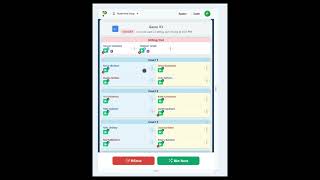
Link two players to be fixed partners. Handles odd numbers of players and any mix of fixed teams with individual players. Use the link feature in the player roster to assign fixed partners.
For rating-based mixing, see the Rating System section below to create balanced matchups based on player skill levels.
Some players need guaranteed court time — coaches, paid lessons, the host running the evening. Mark them with the star icon and they're protected from sitting out while everyone else rotates through fairly.
No need to use complex weight settings — just choose a pre-made preset from the Quick Presets menu in Games Settings.
If someone doesn't play where directed, you can let the system know by performing a swap. This way the mixer can continue to deliver fresh opponents and partners to everyone.
How to use: Either drag and drop by clicking and holding the three-dot menu icon beside the player, OR tap the three-dot menu for the player and choose 'Swap with...', then click another player's three-dot menu to complete the swap.
Add late-arriving players to the current game when they show up after courts have already been called. Perfect for when you forgot to enter someone's name or a player arrives just too late to play in the current game. For example, three players are sitting out when the game is called and everyone else heads to their courts. Then two more players arrive just as play is starting — now five players are free. Shoo-in can open an available court for them, randomly choosing four of those five to play and leaving one in the sit-out area.
How to use: Add the player to your roster, then use the shoo-in feature to place them directly onto an available court or into the sit-out area for the current game without needing to remix.
Start a new round with players who have finished their games while others are still playing. Ideal when waiting for all courts to complete would take too long — you can enter scores for incomplete games later after the next round begins.
How to use: Enter scores and submit normally for the games that are finished. Click "Split Session" to remix the next game using only the players that have completed their game and entered their score. The incomplete games can be entered any time they finish by clicking the enter scores button on the next round.
Hand the session to the server and step away. In Headless Mode the server auto-finalizes each round as soon as all scores come in, auto-mixes the next round using the same algorithm as the manual mixer, and publishes the new court assignments to players — for as many rounds as you choose. Players keep entering their scores from their own phones; you don't need to be watching the screen (or even be in the building).
How to use: Open Enter Scores on the mixer page, click Enable Headless in the footer, and pick how many rounds the server should run. A banner replaces the button while headless is active, showing games remaining plus Pause and Take Control controls. Pause freezes auto-advance while keeping the countdown; Take Control cancels headless entirely and returns the session to normal manual mode. When the countdown hits zero the banner disappears and you're back to manual by default.
You can also enable Headless Mode before the first game is mixed: once you have at least 4 active players, the Enter Scores button is available and the modal offers a "no game mixed yet" state with the Enable Headless option. The server will handle round 1 from scratch.
If you used Split Session before enabling headless, the server waits for all courts — including carry-overs from the previous game — to finish before consolidating everyone into the next round. This means a split session cleanly re-merges once every game is scored. Split Session is hidden while headless is active; press Take Control first if you need to split mid-run.
Share your group's player ratings with a public leaderboard page. Perfect for clubs and leagues who want members to track their standings without needing to log in.
How to use: Enable public ratings in your group settings. Share the generated public URL with your players. The page displays current ratings, recent games, and player statistics — updated automatically as you record scores.
Track ratings for fixed partnerships as a single team entity rather than individual players. Ideal for leagues or groups where partners always play together and want their combined performance rated as a unit.
How to use: Enable team rating mode in your group's rating settings. When players are linked as fixed partners, their games contribute to a shared team rating instead of separate individual ratings. Team ratings appear on the leaderboard alongside individual players.
Organize players into squads — named subgroups that the mixer treats as rival teams. When squads are active, the algorithm strongly avoids placing squad-mates on opposing sides of the net and encourages same-squad partnerships. This creates a natural squad-versus-squad dynamic where your group's internal teams compete against each other every game.
How to use: Create subgroups in the Dashboard and mark them as squads. Assign players to their squad, then start a mixer session as usual. The mixing engine automatically detects squad assignments and applies the squad-vs-squad scoring — no special preset or weight adjustment needed.
Use the "Show All Courts" feature (📺) to display all players and their current courts on one screen without needing to scroll — perfect for a TV or projector.
Turn on Player self-service and the big screen shows a "Scan to check in" QR code. Players point their phone camera at it, tap their name (or add it if they're not listed), and they're checked in — no app install, no player account. After that their phone shows their court every round, and they can request a sit-out or mark themselves as leaving; every request folds into the next mix automatically.
Set a countdown timer for game duration directly in Big Screen Mode. When time is up, a loud buzzer sounds to signal the end of the round. Enable auto-mixing and the system will automatically generate the next round of matches when the timer expires — completely hands-free court rotation. The timer auto-stops after 180 minutes of continuous use to prevent unattended looping.
Customize your printouts with adjustable spacing, fonts, and column layouts to fit everything on one page. Use color markers for easy visual identification of teams or player names.
Save player names so you don't need to type them in each time. Have multiple groups of players saved for different playing locations or events. Sign up to access the dashboard.
Give your players ratings via seed ratings or let ratings be adjusted by entering game scores. Weight can be given so the mixer prefers to make partners and/or opponents roughly equally rated.
This uses an ELO system with a default rating of 1500. Ratings are calculated per group and reflect the relative strengths of players within each group.
Record game scores to automatically calculate and update player ratings using the ELO system. Scores can be entered for any completed game, and ratings will adjust based on the outcome and margin of victory.
The following settings are used for groups. Most can be customized per group:
Default Rating:
The starting rating for all new players. A standard ELO default is 1500. All ratings are relative within each group, so the actual number matters less than the differences between players. You could use traditional pickleball ratings (3.5,4.0 etc) but make sure to set the scale appropriately.
Base K-Factor:
Controls how much ratings change after each game. Higher values (e.g., 80) mean ratings adjust quickly, which is good for new or rapidly improving groups. Lower values (e.g., 32) make ratings more stable but change slower. This value is automatically adjusted internally: it's doubled for doubles games (to account for ratings changes shared between partners) and scaled by the win bonus setting (to account for increased variance).
Scale:
In the Elo formula, "scale" is the constant that determines how many rating points correspond to a specific win probability difference between players—it controls the steepness of the win-probability curve.
For example, with the standard 400-point scale, if a 1500-rated player faces a 1300-rated player (200 points difference), the formula predicts the higher-rated player will win approximately 75% of the time; if you instead used a 200-point scale, that same 200-point gap would predict ~95% win probability, making the system more "stretched" where small rating differences indicate larger skill gaps.
If you already have set some ratings in place before you started you can calibrate this setting until the expected scores look right. Otherwise you could just leave it at its default.
Player Placement Games:
New players go through a placement period where their rating changes are amplified (2× normal). This helps new players reach their true skill level faster. After completing this many games, rating changes return to normal.
Note: If you are importing players from the legacy system where they already had established ratings, or if you are confident in the seed ratings you entered, you can set this to 0.
Pool Placement Games:
When a group is new, ALL player ratings are more volatile (2× changes). This helps the entire group establish accurate relative ratings quickly. After this many total games are played in the group, volatility returns to normal.
Note: If you are importing players from the legacy system where they already had established ratings, or if you are confident in the seed ratings you entered, you can set this to 0.
Highest Player Responsibility:
In doubles, this determines how much the higher-rated player affects the team rating calculation. At 50%, both partners contribute equally. At lower values (e.g., 35%), the team rating weights more toward the lower-rated player, partially protecting stronger players from rating loss when paired with less skilled partners. Example: If the highest rated players run around taking all the balls in your league, you may want to set this to around 50%-70%. If in your league, the lowest rated players end up receiving most of the balls, you should set this around 30%-40%.
Win Bonus:
Controls how much winning matters vs the score margin. At 0, only the margin matters (a 21-19 win changes ratings less than 21-5). At 1.0, only winning matters and margin is ignored.
Protect Winner Rating (Experimental):
When enabled, winners can never lose rating points, even in unusual scenarios (e.g., a heavy favorite winning by less than expected). This may cause rating inflation/deflation near the boundaries.
Rating Decay:
When enabled, players who haven't played in 7+ days will have their rating gradually reduced each week. This keeps the leaderboard active and prevents inactive players from holding top positions indefinitely. Ratings have a floor of 1000 and will not decay below that. The decay rate (default 2%) determines how much rating is lost per week of inactivity.
Group Timezone:
Sets the timezone used for your group's date displays and session boundaries. This affects when "today" starts/ends for session grouping and when the weekly decay calculation runs. Choose the timezone where most of your group plays.
Public Ratings Page:
When enabled, creates a shareable link where anyone can view your group's player ratings and standings. Useful for letting players check their ratings without needing an account. The link is unique to your group and can be shared via text, email, or posted at your playing venue.
Team Rating Mode:
Choose how team strength is calculated. "Individual ratings" uses a weighted average of both players' individual ratings. "Team entity ratings" tracks each unique player pair as its own rated entity based on games they've played together. Both are always calculated in the background—this setting controls which is used for mixing and displayed on leaderboards. Individual ratings reward personal skill; team ratings reward partnership chemistry.
Typical Competitive Game Duration:
The expected duration of a competitive, close game. Used for time-based adjustments in non-rally scoring games. If a game has a short time limit, bonus points are added to simulate how the game might have finished.
Rally Scoring:
Rally scoring means a point is scored on every rally, regardless of who served. Traditional scoring only awards points to the serving team. Rally scoring games tend to have more predictable outcomes, which affects rating calculations.
Win By Two:
When enabled, a team must win by at least 2 points (e.g., 11-9 or 12-10). This affects expected score calculations for rating adjustments.
Target Score:
The score needed to win a game (e.g., 11, 15, or 21 points). This affects expected score calculations and time-based adjustments.
Logged-in users can sync their mixer sessions to the cloud, allowing access from any device. Sessions are associated with your account and can be managed from the dashboard.
The Scheduler is a PickleFriend.net organizer tool — back by popular demand from the classic site. Create and manage pickleball events and recurring leagues for your group. Set up single events or recurring schedules that repeat on selected days over a date range.
Players do not need an account to participate. Invited players receive an email with a personal link to view event details, RSVP, and interact with the event — no signup or login required.
For each event, configure the date and time, location (with Google Maps autocomplete), number of courts, maximum player capacity, session duration, and optional descriptions. Events support three waitlist types: Standard (first come, first served), Lottery (random selection after a grace period), and Rating-based (highest rated players get priority).
Auto-Invite lets you automatically send email invitations to your entire group or specific subgroups a configurable number of days before each event. You can also invite players manually after creating the event. Players receive email notifications and can RSVP directly from their inbox.
Additional features include fixed partner configurations per event (players can use a mutual selector to pick each other — no awkward one-at-a-time asking), booking jobs where players can volunteer for setup tasks, notices posted by the organizer, chat for event communication, and After-Game Social (AGS) announcements.
How to use: Go to the Scheduler page in your dashboard sidebar. Click "Create Event / League" to set up a new event. Use "Upload CSV" to bulk-create events from a spreadsheet. Manage each event's RSVPs and player statuses from the event detail page.
Some scheduler fields have nuanced behavior worth understanding:
Courts:
You can enter plain text into the courts field — for example,
"We obtained courts 1, 2 and 5" — and the system will parse the court numbers to
determine the total count (3 courts in this example). Your players will also see exactly
which courts you have, making it easy to communicate venue details directly through the
event without a separate message.
Waitlist Types:
The scheduler supports 5 waitlist types,
each controlling how players are admitted when event spots are limited:
Grace Period: For Lottery and Rating types, the grace period mitigates the "click race" in busy groups. As long as a player RSVPs within the grace period after invitations are sent, they are treated as an early bird — equivalent to having clicked at the very first moment. The grace period starts automatically when the first invitations are sent (manual or auto-invite).
Standard and Manual types do not use a grace period.
Disallow Direct Declarations:
Controls whether players can
unilaterally declare a partner. When this setting is left unchecked
(the default), a player can declare that they already have a partner — the partnership
is formed instantly without confirmation from the other player, and both players are
set to "In" status (or placed on the waitlist if there are no available spots).
When checked, direct declarations are disabled and the declared partner must confirm the partnership request before it takes effect. Enable this if you want to prevent players from committing others without their knowledge.
Auto Invite:
Automatically sends email invitations to your
group's players a configurable number of days before each event. You can invite your
entire group or target specific subgroups — and
different subgroups can be invited at different intervals if you prefer staggered
invitations (e.g., core players get invited 7 days out, everyone else gets invited
3 days out).
Auto Invite runs automatically via the system's scheduled tasks — once configured, you don't need to remember to send invitations for each event.
Shame Notices:
When a player drops out of an event at the last
minute, the scheduler can notify the group with a shame notice so
everyone knows what happened and can plan accordingly. This encourages accountability
and helps organizers manage late roster changes without scrambling to communicate
individually.
Attending Events Mode is a unified schedule view for logged-in players, showing all upcoming events across every group and organizer. If you've been invited to events by multiple organizers, they all appear in one place. Players who don't have an account can still RSVP and interact with events directly from their email invitation link.
Switch between list view (events grouped by date with proximity indicators) and calendar view (month grid with event dots). Pre-invite events — events your subgroup will be auto-invited to but haven't been invited to yet — appear as ghosted entries so you can plan ahead.
Click any event to open the player schedule page, where you can RSVP (I'm In, Undecided, I'm Out), join the waitlist if the event is full, volunteer for booking jobs, select a fixed partner, view organizer notices, add the event to your calendar, and chat with other players.
How to access: You will only see the Attend button in the dashboard header if you have been invited to an actual event, either by yourself or by a third party.
The Players Dashboard now supports an All Players view where you can see, filter, and edit players across multiple groups at once. This is designed for power users who manage several groups and want a unified roster management experience.
Sort by group (flat row view) to see all players listed under their group, or sort by name (tree view) to see players alphabetically with their group memberships nested underneath. Use the search filter to quickly find any player across your entire roster.
How to access: Enter this mode by changing the filter drop down to "All Players". If you only manage one group, the default view still just shows that group's players.
Organizers managing a ladder with multiple divisions can run all of them at the same time from a single phone or tablet — no laptop required. Each division has its own independent mixer session, and the group switcher dropdown in the header lets you hop between them instantly. This is ideal for ladder nights where Div A, Div B, and Div C are all playing on separate courts at the same venue.
How to use:
Ladder Leagues let organizers run structured, multi-division competitive leagues with automatic promotion and relegation. Players or teams compete within their division, and at the end of each cycle the top performers move up while the bottom move down — keeping every division competitive and giving everyone something to play for.
Create as many divisions as you need — Div A, Div B, Div C, and so on. Each division maintains its own standings, ratings, and game history. Players are ranked within their division using the same Elo rating system available in standard groups.
Ladder Leagues support both individual and team entity modes. In individual mode, each player carries their own rating and moves between divisions independently. In team mode, fixed partnerships are rated as a unit — the team's combined performance determines their standing and movement.
At the end of each cycle, the organizer triggers promotion and relegation. The top players or teams in a lower division are promoted up, while the bottom of the higher division are relegated down. The number of movers per cycle is configurable. Start ratings in the new division are calculated from the existing field so movers land at a competitive position — not too high, not too low.
Inactive players or teams gradually lose visible standing over time, preventing stale names from occupying top positions. The hidden rating is never lost — when a player returns and plays a game, their full rating is instantly restored. If a player stays inactive long enough, they can be automatically relegated to a lower division to keep standings competitive.
Need a substitute for tonight's Div A event? Invite a spare from Div B. Sparing down (a Div A player in a Div B game) leaves the spare's home-division standing untouched — they just get a temporary rating in the lower division for that game. Sparing up (a Div B player in a Div A game) auto-promotes the player on their first game in the higher division — their home-division row is deactivated (rating preserved on it, frozen) and they become officially part of the higher division from then on. Organizers control which directions spares can be pulled from and which events auto-invite from which divisions.
Share a public link and let your players check standings for every division in one place. The public ratings page shows each division's leaderboard with promotion and relegation indicators, recent games, and historical cycle movements — no login required.
When all your divisions play on the same night, one organizer with a phone can manage them all. Use the group switcher dropdown to hop between divisions, launching and advancing each division's mixer session independently. See the full walkthrough in the Dashboard Features section.
How to use: Set up a ladder from the Dashboard by creating a group and enabling ladder mode. Add divisions, configure the number of promotion/relegation slots and cycle settings, then add players to their starting divisions. Use the Scheduler to organize events within your ladder, and process cycles from the Ladder management page when the time is right.
Ladder Leagues — How It Works →
Detailed guide covering ratings, promotion & relegation, inactivity decay,
spares, team partnerships, and common player questions.
Badges shown beside player names when applicable:
Presets cover most groups, but every knob is yours when you want it. The Mixer exposes priority weights for sit-out fairness, fresh partners and opponents, rating balance, gender rules, court rotation, and a quality-vs-speed dial — turn any of them up to tell the engine "try harder at this," and it rebuilds the next round around your priorities.
Each setting has a sensible default, and a * indicator shows you the moment you've changed one. You'll rarely set them one at a time — pick a preset, then fine-tune from there.
Full settings reference → — every weight explained, with its default and when to reach for it.
Feature requests, bug reports, community feedback, and all other support: /r/PickleFriendMixer
No signup, no credit card. Type a few player names, set the courts, press Mix. Your first round is on the screen in milliseconds.